Send and receive messages
The Test Bed features an internal messaging system that lets you communicate with your community’s organisations, with your fellow community administrators, and with the Test Bed administrator. To access it click the My messages link from the side menu.

Note
Messages are addressed to organisations, not individual users. A message you send to one of your community’s organisations is visible to every user of that organisation, and a message addressed to the Community administrator is visible to all administrators of your community. Deleting a received message removes it for all of them as well.
View your messages
The messages screen presents your Received messages by default. You can switch to view your Sent messages instead by toggling the Sent messages switch in the header, which also relabels the card accordingly.
Messages are presented one per table row, with each row including:
An icon indicating whether the message is flagged as important. This column is only displayed if at least one of the listed messages is important.
The From (or, in the sent view, To) organisation.
The message, showing its subject or, if none was provided, (no subject), followed by a preview of its content.
The date the message was sent.
Unread messages are presented in bold. Each row also offers a further options control to Reply, mark it as read or unread, and to delete it. If no messages match the current view and filtering, the table displays the message No messages found.
Besides the table itself, you have header buttons to Refresh the list and to compose a New message (see Send a message).
Apply search filters
To locate specific messages you can use the filter controls presented above the table:
A free-text search box to match against the message’s subject and content.
A date range picker to filter by the date the message was sent.
A Show… dropdown offering the checkboxes Read messages and Unread messages (both selected by default) to filter by read status, complemented in the received view by Only important messages.
A From… (or, in the sent view, To…) dropdown to filter by the relevant party. As community administrator your available options here are the Test Bed administrator, the Community administrator (i.e. your fellow community administrators) and, individually, each of your community’s organisations.

Read a message
Clicking on a message’s row displays its content in the detail area to the side of (or below) the table, depending on whether split view is enabled (see Choose your preferred view).

The message’s detail presents its subject, a tag showing the sending and receiving party, and the message’s date. When a message has more than one recipient this is summarised as (N recipients), which can be expanded or collapsed for the full list. Opening a message automatically marks it as read.
If the message is part of a longer exchange, you are presented with a Show earlier messages control to reveal (or, once shown, Hide earlier messages to hide again) the previous messages in the thread.
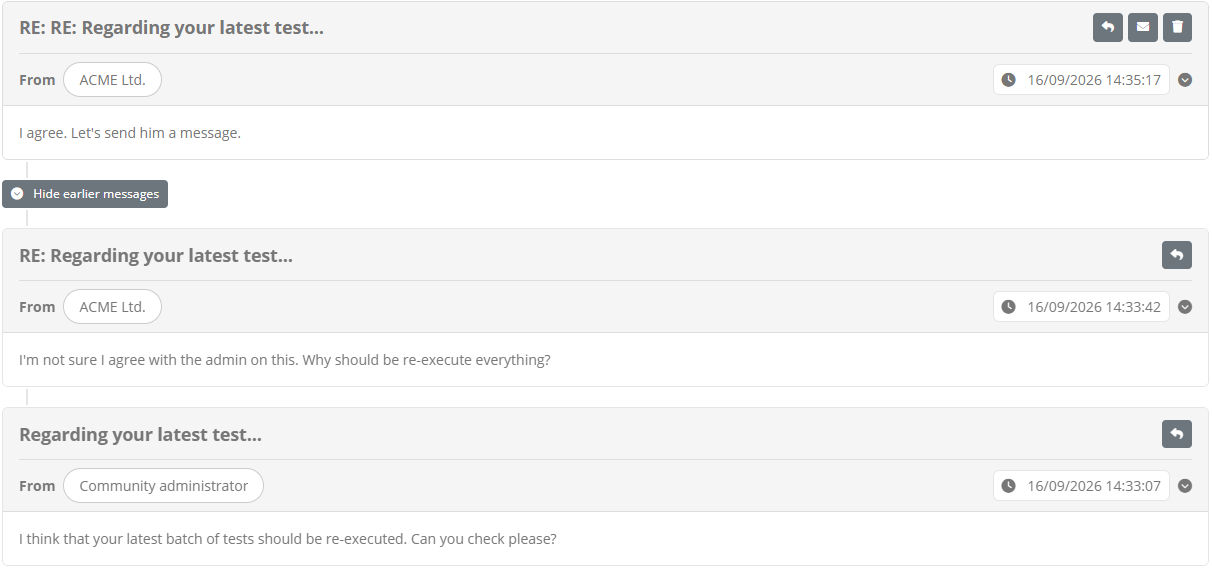
From the message’s detail you can also Reply, toggle its read status, or delete it, using the icon controls presented alongside it.
Choose your preferred view
By toggling the Split view switch in the header you can choose between viewing the message list and a selected message’s detail side-by-side in a resizable split display, or as a continuous view where selecting a message replaces the list. This choice, like the initial default it is based on, is recorded in your user preferences.
Send a message
To compose a new message click the New message button from the messages screen’s header. Alternatively, to reply to an existing message, use the Reply control from its row or detail display, which will pre-fill the recipient and quote the original message.

The compose dialog offers you:
A Flag as important switch to highlight the message for its recipients.
The to field, where you select one or more recipients by clicking Select recipients…. As community administrator you may address your message to the Test Bed administrator, to the Community administrator (i.e. your fellow community administrators), to All your community’s organisations at once, or individually to any one of them.
An optional subject.
The message’s rich text content (also optional).
Once ready click Send to deliver the message. If you leave the subject or content empty you will be prompted to confirm before proceeding. You may also click Minimise to keep the message as a draft while you continue with other tasks, or Cancel to discard it.
A minimised draft is shown as a small Draft message bar that remains visible as you navigate to other screens, letting you resume or discard it at any time.

Use a draft like this may be useful in case you need to collect information from varous sources, such as consulting your test session history to retrieve a relevant test session identifier.
Manage your messages
Besides acting on individual messages, you can select multiple rows from the table using their checkboxes to reveal a bulk action toolbar allowing you to Reply, mark them as read or unread, or delete them all at once. Deleting is requested with a confirmation prompt given the action cannot be undone.
Note
Sender names: As community administrator you always see the specific user who sent a message, for messages coming from your community’s organisations or from your fellow community administrators (but not from the Test Bed administrator, whose identity is never revealed). This is independent of the sender name permissions you configure for your community’s organisation users (see Manage your community).
Note
Unread messages: Whenever you have unread messages you will see a status indicator on the My messages menu item, and you will be informed with a notification upon logging in. Both are cleared once you visit the messages screen, but will reappear if unread messages remain.
Note
Demo account: The messaging feature is not available when connected using a demo account.